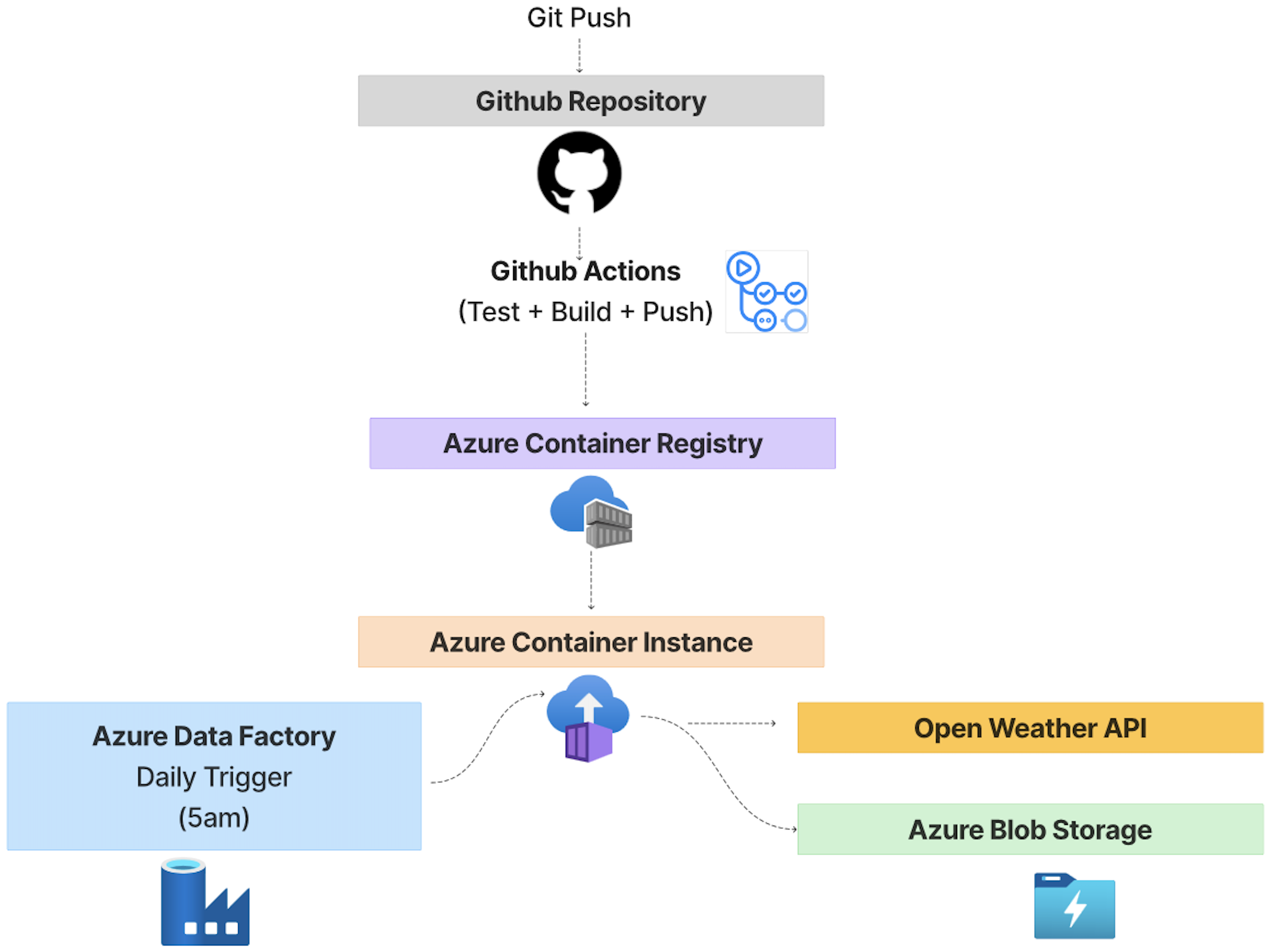
This project started as a take-home assignment for a data engineering role. After, as part of my learning journey into cloud computing, and after completing Azure AZ-900 and DP-900 certifications, I wanted to get hands-on practice so I deployed the pipeline to Microsoft Azure. Here, I share the main steps I took to make that happen.
A hypothetical team of data scientists asks me, as part of the data engineering team, to a build Dockerised data pipeline in Python to collect daily meteorological data from the publicly available OpenWeather API (https://openweathermap.org/). The GitHub repository for the project can be found here. There you can find a detailed README describing the project’s architecture, design decisions, implementation, and instructions on how to run it locally. This post focuses exclusively on the deployment to Microsoft Azure.
Since, as part of the take-home assignment, the application and all of its dependencies were already Dockerised the objective was to make it run on Microsoft’s cloud infrastructure instead of my local machine.
The first step, after creating an Azure account, was to set up a Container Registry. A container registry is a centralised repository used to store and distribute container images (files and components that make up an application). Azure Container Registry is Microsoft’s private container registry which is tightly integrated with the Azure ecosystem. It basically plays the same role as Docker Hub. It allows you to upload Docker images, control who access them, and make them available for deployment across Azure services.
So with the Docker images stored in the cloud, the next question became: who actually runs it?
For that I used Azure Container Instances (ACI). This was actually a source of confusion for me because the term ‘container instance’ can have more than one meaning. On one hand, it can simply refer to a running container. On the other hand, Azure Container Instances is an Azure service that allows you to execute containerised applications. For this project, ACI offered the simplest way to run a container in Azure and that simplicity comes from what Azure manages for you behind the scenes. When you create an Azure Container Instance, you provide the Docker image (stored in a Container Registry), the amount of CPU and RAM to allocate, environment variables, restart policy, and a few other configuration settings. Behind the scenes, Azure finds available compute capacity in one of its datacentres, provisions an isolated container runtime, pulls your Docker image from Azure Container Registry, and starts the container. You never see or manage the underlying virtual machine. It is all abstracted away. Contrast this with deploying to a Virtual Machine, where you would need to create the VM, choose an operating system, install Docker, configure networking and firewall rules, and maintain the machine yourself. Or, even further, Kubernetes, where you need to understand concepts such as clusters, nodes, pods, deployments and autoscaling. These are all important technologies to learn, but for a simple batch pipeline that runs once a day, they would introduce unnecessary complexity.
At this point I had a service responsible for storing Docker images and another responsible for executing them. The remaining task was to have a service to store the output produced by the pipeline.
Azure offers several storage services, and for this project I decided to use Azure Blob Storage. Blob Storage is Microsoft’s object storage service and provides a simple and highly scalable way of storing files of virtually any type, including unstructured, semi-structured and structured analytical data such as Parquet. In this project, the pipeline uploads the generated Parquet dataset directly to Blob Storage, making it available for downstream processing once the container has finished executing.
Another important aspect of the deployment was allowing the different services to communicate securely. The container needs access to the OpenWeather API to retrieve data and also needs permission to upload the resulting Parquet file to Azure Blob Storage. Rather than embedding secrets inside the code, API keys and Azure connection strings are injected into the container as environment variables at runtime. This keeps sensitive information separate from the application code while allowing the container to authenticate with the required services.
Finally, I wanted the pipeline to run automatically every day at 5am without any manual intervention. To achieve this, I used Azure Data Factory as the orchestration layer. Rather than processing data itself, Azure Data Factory is responsible for scheduling the execution of the Azure Container Instance on a daily basis.
To complete the deployment workflow, I also extended the project with a simple Continuous Deployment (CD) pipeline using GitHub Actions. Continuous Integration (CI) was already in place, automatically running the project’s unit tests on every push. The new deployment stage builds a fresh Docker image whenever changes are merged into the main branch and pushes it to Azure Container Registry. As a result, the next scheduled execution of the pipeline automatically uses the latest version of the application without requiring any manual deployment steps.
The pipeline is deployed on Microsoft Azure using Docker containers. GitHub Actions automatically runs tests on every push and builds/pushes the Docker image to Azure Container Registry when changes are merged into the main branch. Azure Data Factory triggers the Azure Container Instance daily at 05:00, which executes the pipeline and stores the resulting Parquet dataset in Azure Blob Storage.